Skip to Content
Citi and Google pay logo

Do more with your Citi®
card and Google Pay

Google Pay is a safe, simple and helpful way to pay and manage your money

Learn More

Payments compatible with your life
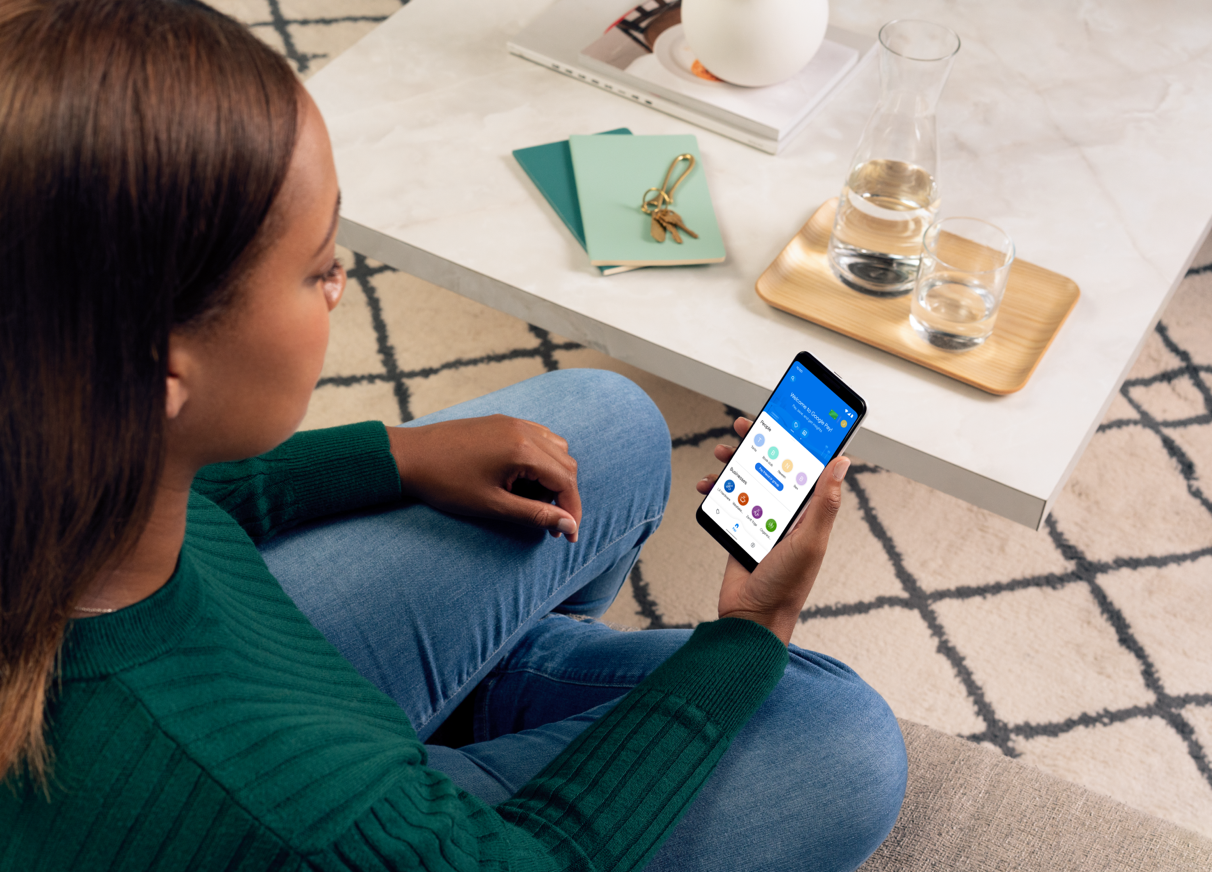
Google Pay makes it easier than ever to pay with your Citi card

  1. In Stores

    Shop in stores without sharing your card number with merchants

    Learn how to pay in stores

    NFC or G Pay
  2. Online

    Your payment info is pre-filled so you can speed through checkout.

    Learn how to pay while online
  3. Within apps

    On the go? Shop within merchant apps to grab your groceries, coffee, or a ride.

    Learn how to pay in apps
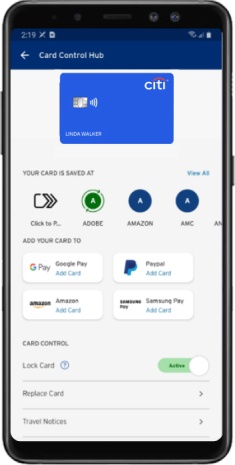
Add your eligible Citi® Credit card to Google Pay right from the Citi Mobile® App for Android.

  1. Go to the "Services" tab on the Citi Mobile App and select “Card Control Hub“.
  2. Tap “Add to Google Pay“.
  3. Enter a one-time password to authenticate and you'll be all set to start using Google Pay.

To add your eligible Citi card to Google Pay and set it as your default, simply:

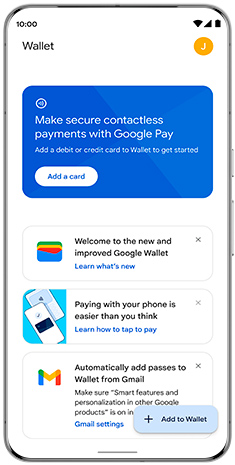
  1. Open or download the Google Wallet app on .
  2. Tap ‘Add to Wallet’ and follow the instructions.
  3. Once successfully added, tap on your Citi card on the home screen and tap the 3 dots in the top right corner.
  4. Select ‘Make default for contactless’ and you are all set!

Your favorite Citi® card.
Your favorite places.

No need to juggle between your phone and your wallet at checkout.

Pay with at millions of places.
Pay in apps, on websites, at gas stations and restaurants and anywhere contactless payments are accepted.

Just look for one of these symbols at checkout:

Google Pay LogoNFC Logo

Google Pay FAQs

Google Pay is a fast, simple way to make contactless payments. Add your Citi card to Google Wallet for secure access no matter where you go and to tap to pay everywhere Google Pay is accepted. Plus, Google Wallet is a secure & private digital wallet on Android that gives you quick access to payment cards, passes, tickets, keys, or IDs.
Download the Google Wallet app from

All Citi branded consumer credit and debit cards issued in the US are eligible for Google Pay, except for ATM cards and American Express® cards. Citi branded business cards are not eligible for Google Pay, except for US issued Costco Anywhere Visa® Business cards.

Download the Google Wallet app from

Just unlock your phone and hold near the terminal until you see a check mark. You don’t even need to open the app.

  1. Locate your receipt from your purchase.
  2. Take both the receipt and the item you want to return to the store.
  3. Hold the back of your phone to the contactless payment terminal.
  4. For some returns, you might have to provide the last 4 digits of your virtual account number. You can find your virtual account number on the card details screen in your Google Wallet app.

With Google Pay, you can pay online and within apps with a few quick clicks. Just look for the Google Pay logo or the Buy with Google Pay button at checkout, choose your Citi card as preferred payment method (or set it as default card), and complete the order. Your payment information will be automatically filled, so you don't need to type anything.

  1. Go to the "Services" tab on the Citi Mobile App and select “Card Control Hub“.
  2. Tap “Add to Google Pay“.
  3. Enter a one-time password to authenticate and you'll be all set to start using Google Pay.

When you pay in stores, your real card number is not shared with merchants. Instead, it is replaced with a unique digital card number that helps protect your card information.

This means that when you use Google Pay to pay in stores:

  • Your real card number is not shared with merchants
  • Statements and receipts will show the digital card number
  • To return items you might need to show the digital card number

You will see this digital card number shown on Google Pay as a 4-digit ‘virtual account number’.

The first card you add to your Google Pay account is automatically set as the default card for in-store payments. To change your default card for in-store payments:

  1. Open Google Pay on your phone.
  2. Click “Tap to pay” and select your Citi Card as your default.
  3. Tap on the three dots on the right side of your phone and choose “Make default for contactless”.

All of the great benefits that already come with your card are there for you, such as:

  • $0 Liability on unauthorized transactions. You are completely covered for any unauthorized transactions on your account.
  • Citi Entertainment® ‐ get special access to purchase tickets to thousands of events, including presale tickets and exclusive experiences for the year's most anticipated concerts, sporting events, dining experiences and more.

Learn more about these and other great benefits that your card may be eligible for.

Google Pay works on Android devices running Lollipop 5.0 or above. iPhones or iPads require iOS 11.0 or higher.

You can use Find My device to quickly put your device in Lost Mode to suspend Google Pay. Additionally, you can call the number on back of your card and a customer service representative will help you.

Visit the Citi Security Center to learn more about how Citi can help keep you protected.

Learn more about Google Pay at

Citi Logo

The Citi Mobile® App.
Designed for you to spend less time on it.

With the Citi Mobile® App you can access account details in real time, view transactions, make payments fast, and even get a summary of your spending habits.

Download the Citi Mobile App on or the for exciting enhancements like fast access with Face ID® or Touch ID® and
customized account alerts.

Apple Store AppGoogle Play logo

Citi® Benefits

$0 Liability on Unauthorized Transactions

Enjoy benefits like $0 liability on unauthorized transactions..

Citi Entertainment®

Discover presale tickets and exclusive experiences for concerts, sporting events, dining and more with Citi Entertainment.