








Citi Shop FAQs
You can view the Citi Shop terms and conditions here.
The Citi Shop Program is a free browser extension that automatically searches for Percent Back and Amount Back Offers at thousands of merchants. If a Percent Back or Amount Back Offer is available at a merchant, the Citi Shop extension also automatically searches for coupons at checkout. Once you activate an Offer, the Percent Back or Amount Back is earned in the form of a statement credit applied to the participating Citi credit card you enrolled in Citi Shop. The Percent Back or Amount Back you may earn is calculated based on the portion of your purchase amount, excluding sales tax, fees, and shipping costs, that is eligible to earn a Percent Back or Amount Back, as determined by merchants’ Offer terms and conditions and exclusions.
Log in using this link and your Citi online credentials. Follow the prompts and instructions to complete your Citi Shop enrollment.
The Citi Shop extension is not available for Android devices.
As you browse and shop online merchants, the extension will alert you to any available Percent Back or Amount Back Offers and will search for available coupons during checkout. Simply click to activate the Offer before checkout. The Program will keep track of the transaction and the amount you earned. You can manage your Citi Shop enrollment, including viewing any pending and paid statement credits, on your Citi Shop Dashboard through your Citi Account Online or the Citi Mobile® App.
You can add the extension by accessing www.citi.com/citishopenroll
The Program is available to primary cardholders with an eligible Citi-branded US credit card account that is open and not in default.
At this time, Retail Debit Cards, Citi Retail Services Cards, and ICG Commercial Cards are not eligible. Citibank will determine, in our sole discretion, which cards are eligible for use in the Program.
When enrolling in the Program, a list of your eligible Card Accounts will be displayed.
There are thousands of eligible online merchants in a variety of categories, including:
- Clothing & Retail
- Health & Beauty
- Home & Outdoor
- Food & Beverage
- Travel & Entertainment
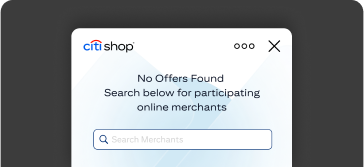
Once you install the Citi Shop extension on your desktop browser or iOS device, offers will automatically appear when you visit a participating site. If an offer does not appear, use the offer search tool by clicking on the Citi icon on the top of your desktop browser, or tap the puzzle icon on iOS Safari and select Citi Shop to search for participating merchants.
Yes, you can get statement credits from Citi Shop in addition to any rewards you usually earn with your credit card. This means you’ll continue earning your rewards as usual, while enjoying the added benefit of statement credits from the Citi Shop program.
On average, statement credits are posted to your Enrolled Card Account 61-180 days after your completed transaction but may take longer. Merchants typically hold a statement credit to ensure the purchase is not canceled or returned. This hold period may be longer depending on the merchant (e.g., the hold period for hotel bookings can extend until after your stay ends).
You can view the status of your Citi Shop statement credits online by clicking this link.
A Pending status indicates we are processing your statement credit. The pending amount may not be the final amount you receive as a statement credit. For example, returned items may decrease the amount of, or eliminate, your statement credit.
An Ineligible status indicates an Offer was activated and a purchase was completed, but the merchant determined that the purchase did not qualify for the Offer. For example, returned items or items in the Offer’s excluded categories are not eligible for statement credits.
A Paid status indicates we have processed your statement credit. This statement credit will post to your Enrolled Card.
Statement credits typically post to your Enrolled Card Account within two to three business days after reaching a paid status; however, it may take up to one to two billing cycles for statement credits to appear on your billing statement. Credits will be listed on your statement as “CITI SHOP STATEMENT CREDIT”.
If you have questions about your statement credit, please contact customer service using the number on the back of your card (TTY: We accept 711 or other Relay Service).
If you made a purchase using a Citi Shop Offer, you may not see the transaction listed on your Citi Shop Dashboard until the merchant notifies us. Some merchants notify us within an hour, and occasionally, other merchants can take up to several days to notify us of a transaction.
Offers may not be eligible for a statement credit, based upon merchant exclusions, restrictions, and terms and conditions. Please review all merchant terms and conditions when you activate an Offer.
Other tips to keep in mind to help avoid interference with a statement credit posting to your account:
- Make sure you are using a supported browser and activating the Offer prior to completing your online transaction.
- Check to see if you have a privacy/ad blocking extension or browser that deliberately strips tracking parameters from URLs and/or cookies
- If you deny cookies, use strict browser privacy settings, or clear cookies frequently, it may interfere with tracking. To help ensure proper tracking, we recommend allowing cookies and avoiding third-party extensions or settings that block tracking cookies.
- Some merchants have specific category exclusions. When activating an Offer, carefully review the Offer terms for exclusion details.
- Complete your transaction when you activate the Offer. Offers may change or expire without notice.
- If you search for or use offers or coupons from other sources, this may cancel the Citi Shop Offer you activated.
- If you return an item, the statement credit will not be applied.
- If you have other shopping rewards program extensions downloaded to your browser or device, your reward may be attributed to one of those programs.
No. You can use any form of payment accepted by the online merchant.
Citi Shop detected something blocking ads or domains which is preventing proper functioning of the program. Potential reasons and ways to troubleshoot include:
- Firewalls, VPN, or other network filtering devices that limit traffic based on security policies – please try switching to another internet connection, hotspot or network.
- Internet connectivity issues – please try refreshing the page.
- Ad blocker software installed on your browser – please see the following information on ad blockers.
If you are using an ad blocker on your browser, follow these steps to see Citi Shop Offers. While ad blockers help to remove pop-ups, ads, and unwanted banners, they can also prevent features in the Citi Shop extension from functioning properly including offer activation. To ensure ad blockers aren’t interfering with your statement credit and coupon experience, please add the URL listed below as an exception in your ad blocker’s block list.
Follow the steps below in relation to your specific ad blocker to adjust your settings and help you activate an offer:
For AdBlock:
- Click on the AdBlock icon shown in the top right section of your browser (the icon might be hidden beneath a puzzle icon depending on your browser)
- Select the “settings” icon in the top right section of the extension pop up
- Select the “filter lists” option from the left panel
- Copy/Paste the following URL into the “custom filter lists” field:
https://wild.link/filterlist/allow.txt - Click on the “Subscribe” or “add website” button and you’re all set!
For AdBlock Plus:
- If you currently have AdBlock Plus installed, please uninstall in order to use Citi Shop.
For uBlock Origin:
- Click on the uBlock Origin icon shown in the top right section of your browser (the icon might be hidden beneath a puzzle icon depending on your browser)
- Select the “settings” icon in the lower right section of the extension pop-up
- Select the “filter lists” tab at the top of the page
- Scroll to the bottom of the page and click the “>” symbol next to “Import” , select the checkbox next to “import”
- Copy/Paste the following URL into the textbox:
https://wild.link/filterlist/allow.txt - Click on the “apply changes” button at the top of the page and you’re all set!
For other ad blockers, try going into your ad blocker settings in the “filter list” section and adding the URL https://wild.link/filterlist/allow.txt
Note: If you are unable to do this, you can disable your ad blocker when shopping and re-enable it once you’re done.
For VPNs: We recommend disabling your VPN during shopping sessions so that transactions can be tracked properly and you can earn a Percent Back or Amount Back on eligible items. If you are still seeing an ad block message even after following the steps above, you can disable your VPN when shopping and re-enable it once you’re done.
Once you disable your ad blocker, if you need to enroll in the Program, you can click this link to complete enrollment.
You can manage your Citi Shop enrollment by selecting “Unenroll from Citi Shop” from the Citi Shop tab on the Products & Offers section when you are logged into your account online.
To remove the extension from your device, you will need to follow the steps provided by the specific browser(s).
If your Card Account is closed because of a lost or stolen card, or you didn’t receive your credit card, your Citi Shop enrollment will automatically transfer to the new account number. If you convert your Card Account to a different product type, your Citi Shop enrollment will automatically transfer to the new account number if the card is eligible.
If you choose to close your Card Account for any other reason, or if Citi closes your Card Account, you will not be able to activate new Citi Shop Offers. If you have another open Citi Card Account that is eligible for Citi Shop, you can update which card is enrolled in the Program by selecting “Citi Shop” from the Products & Offers section when you are logged into your account online, or by clicking this link.